How NotebookLM Outpaces Traditional Note-Taking Apps with Three Standout Design Innovations

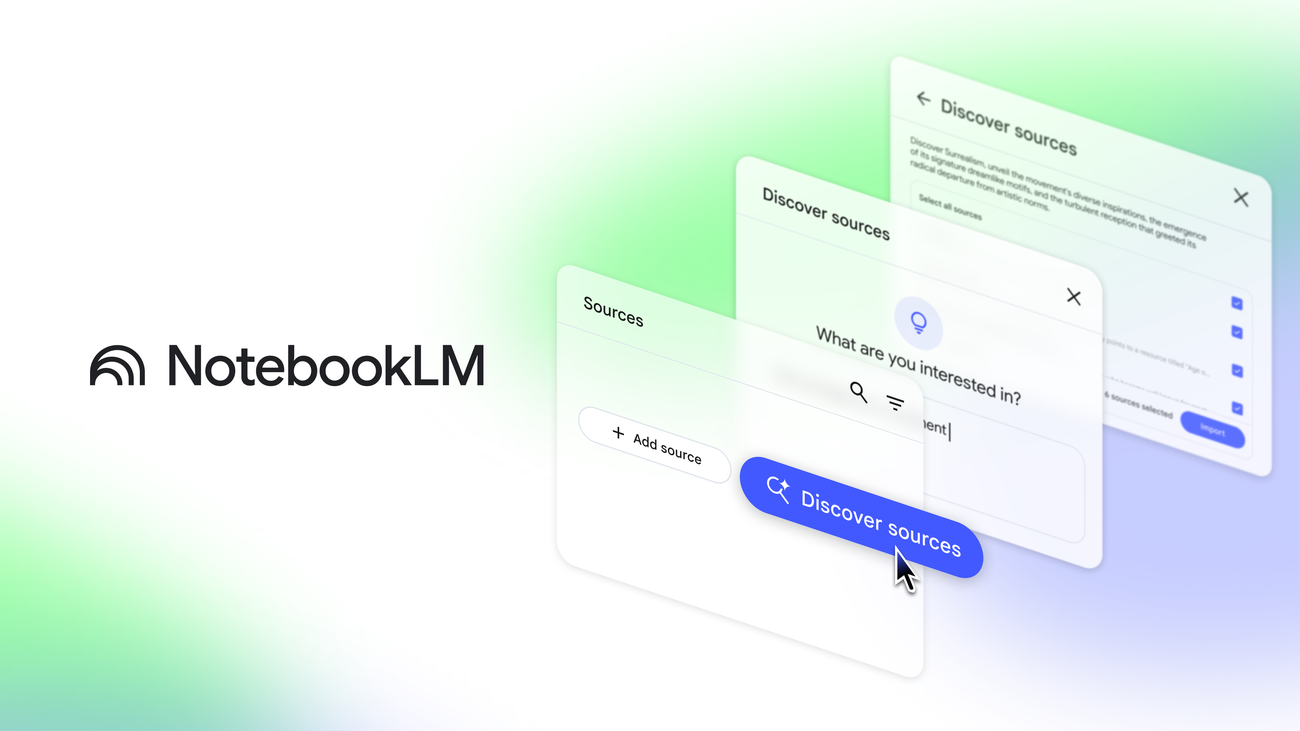
When you use the NotebookLM AI note-taking assistant, you experience three major design changes: a unified three-panel interface, flexible layout modes, and AI-native chat integration. Many users of older note-taking apps struggle with confusion and miss important content because of distracting layouts or technical issues. You no longer need to switch between tabs or worry about combining notes from different sources. NotebookLM’s recent 56% rise in monthly visits shows that these innovations make your workflow smoother and more enjoyable.
Key Takeaways
NotebookLM features a three-panel interface that keeps your sources, chat, and notes organized in one view. This design helps you work more efficiently without feeling lost.
You can choose from four flexible layout modes to match your working style. Switching modes allows you to focus on reading, chatting, or writing as needed.
The AI chat integration provides quick answers and insights, making it easier to summarize and clarify information without searching through notes.
Inline citations ensure you can verify facts and trust the information provided by the AI, enhancing the accuracy of your research.
NotebookLM supports audio and video features, allowing you to learn in different ways and making your notes more accessible.
NotebookLM AI Note-Taking Assistant: Three-Panel Interface
Mental Model
When you open the NotebookLM AI note-taking assistant, you see a three-panel interface. This design gives you a clear mental model for your work. The left panel shows your sources, the middle panel is for chatting with the AI, and the right panel displays your outputs and notes. You move from reading your sources, to asking questions in the chat, to saving your findings as outputs. This flow—inputs, chat, outputs—makes your work feel natural and organized.
Many users say this design helps them avoid feeling lost or overwhelmed. You do not need to remember where you put your notes or which tab holds your research. Instead, you see everything in one place. Users often describe the shift from old note-taking apps to this new layout as a move to a more integrated and intuitive workflow. The three-panel design also solves problems like "tab overwhelm" and makes it easier to interact with AI tools.
A high school teacher shared, "It took me less than an hour to feel comfortable with the new layout. Everything just makes sense."
Integrated Workflow
The NotebookLM AI note-taking assistant lets you work without stopping to switch between different tools. You can read, chat, and write all in one window. This setup saves you time and helps you stay focused. In traditional note-taking apps, you often need to jump between tabs or windows. This can break your concentration and slow you down.
Here is a table that shows how the three-panel interface compares to older note-taking apps:
Feature | NotebookLM | Traditional Note Apps |
|---|---|---|
Interface Type | Three-panel interface | Single-panel or tab-based interfaces |
User Interaction | Simultaneous interaction with notes, AI, and sources | Requires switching between views |
Workflow Efficiency | Higher due to reduced interruptions | Lower due to frequent view switching |
Adaptability | Continuously learns user preferences | Static, does not adapt |
AI Integration | Actively engages with stored information | Passive information storage |
You benefit from a unified digital workspace. This kind of setup acts as a single hub for your tools, files, and messages. It makes teamwork easier because everyone can see the same notes and discussions at the same time. You spend less time searching for information and more time getting things done. The NotebookLM AI note-taking assistant also helps you turn ideas into tasks quickly, which boosts your productivity.
Reducing Fragmentation
Fragmentation happens when you need to use many apps or tabs to finish your work. The NotebookLM AI note-taking assistant solves this by putting reading, chatting, and writing together in one place. You do not have to switch contexts or remember where you left off. This design matches the way your brain works when you gather, process, and share information.
The interface changes smoothly as you move from reading to chatting to writing.
You avoid "tab overwhelm" because everything you need is in one layout.
The design supports your natural workflow, making it easier to focus and remember what you learn.
Research shows that integrated workflows like this reduce cognitive load. You can think more clearly and work more efficiently. The NotebookLM AI note-taking assistant helps you keep your attention on your ideas, not on managing different tools. Some users say that moving their old notes into the new system takes time, and learning the new structure can be a challenge. However, most users find the benefits of a unified workspace worth the effort.
Flexible Layout Modes
Four Modes
You can choose from four layout modes in NotebookLM. Each mode supports a different way of working. The first mode shows all three panels: sources, chat, and outputs. This mode works best when you want to see everything at once. The second mode focuses on your sources and chat. You use this when you want to read and ask questions without distraction. The third mode highlights chat and outputs. This helps when you want to review answers and take notes. The fourth mode lets you focus on just one panel. You use this for deep work or when you need to concentrate on a single task.
These modes help you match your workspace to your needs. You can switch modes with a simple click. This flexibility saves you time and helps you stay organized. Many users create multiple notebooks for different projects. This keeps your work tidy and easy to find. You can move between modes as your tasks change during the day.
Tip: Try using the single-panel mode when you need to write a long summary or focus on a complex topic.
Responsive Design
NotebookLM adapts to any device you use. The layout changes to fit your screen, whether you use a laptop, tablet, or smartphone. You get a smooth experience at home, in class, or on the go. The app works on Android and iOS, so you can access your notes anywhere. You can even use NotebookLM offline. This means you never lose access to your research, even without internet.
Here is a table that shows how the responsive design features help you:
Feature | Description |
|---|---|
Mobile Integration | Dedicated applications for Android and iOS enhance accessibility on the go. |
Background Playback | Users can listen to audio summaries while multitasking or commuting. |
Offline Support | Access notes and research materials without an internet connection. |
Intuitive Content Addition | Users can easily share and integrate content from various sources directly into NotebookLM. |
Customizable Audio Summaries | Supports different learning styles by allowing users to choose how they consume information. |
Video Overviews | Provides visual content for users who prefer video presentations, enhancing engagement. |
You can listen to audio summaries while you travel or do chores. You can watch video overviews if you learn better with visuals. The design supports many learning styles. You add content from different sources with just a few taps. This makes your workflow faster and easier.
User Adaptability
You can adapt NotebookLM to fit your personal style. The flexible layout modes let you change your workspace as your needs change. Many users find that switching modes saves them time every day. You can use different layouts for reading, writing, or chatting with the AI. This helps you stay focused and productive.
Here are some common ways people use the flexible layout modes:
Create multiple notebooks to keep projects separate and organized.
Switch to chat-focused mode when you want quick answers from the AI.
Use source-focused mode when you need to read and understand new material.
Move to output mode when you want to write summaries or reports.
Change to single-panel mode for deep work or when you need fewer distractions.
You can use these tips in school, at work, or for personal projects. The NotebookLM AI note-taking assistant gives you the tools to work your way. You do not need to follow a fixed pattern. You choose what works best for you.
Note: Flexible layouts help you adapt to any task, making your workflow smoother and more efficient.
AI Chat Integration
Central Chat Role
You interact with the NotebookLM AI note-taking assistant through a central chat. This chat sits at the heart of your workspace. You can ask questions, get summaries, and explore your documents. The chat lets you:
Talk with an AI assistant about your notes and sources.
Get insights based on documents or links you upload.
Summarize, compare, and clarify information quickly.
Choose how you want the AI to respond, with options for style and length.
See prompt suggestions that help you start your research.
This central chat helps you find answers fast. You do not need to search through pages of notes. The chat brings the information to you.
Inline Citation
Trust matters when you use AI for your notes. NotebookLM AI note-taking assistant gives you answers with inline citations. You can trace every answer back to its original source. This feature helps you check facts and see where information comes from. Inline citations link directly to the right passage, so you always know the context. This level of transparency builds trust and makes your work more accurate.
Note: Inline citations make it easy to verify information and keep your research reliable.
Bridging Workflows
AI chat bridges the gap between old and new ways of taking notes. You can:
Turn handwritten notes into digital text that you can search.
Let AI organize and tag your notes, so you find them faster.
Get real-time suggestions and feedback to improve your notes.
You can also work with others in real time. Share documents or summaries with your study group. Track changes and leave comments for better teamwork. Upload your notes to find common themes and unique ideas. This approach helps everyone stay on the same page and finish projects faster.
Additional Enhancements
Audio Overview
NotebookLM gives you an audio overview feature that makes your notes more accessible. You can listen to summaries of your research, which helps if you learn better by hearing information. This feature supports people with dyslexia and visual impairments. It also helps if you want to study while doing other tasks. Many note-taking apps only offer basic audio tools. NotebookLM stands out by creating podcast-style discussions and offering strong support for different languages.
Here is a table that shows how NotebookLM compares to other note-taking apps:
Feature | NotebookLM | Other Note-Taking Apps |
|---|---|---|
Audio Content Generation | Yes, podcast-style discussions | Limited audio features |
Accessibility for Dyslexia | High, tailored audio support | Moderate, text-based |
Support for Visual Impairments | High, audio overviews enhance engagement | Moderate, mostly text |
Multilingual Support | High, aids non-native speakers | Varies, less focus on audio |
Tip: Try listening to your notes in another language to improve your understanding.
User Feedback
Your feedback shapes how NotebookLM grows. The team listens to users and adds features you request. For example, users asked for in-line citations, and the team added them quickly. You help guide the development by sharing your needs and ideas. The team works with you, ships updates early, and improves the app based on what you say.
You get new features like in-line citations because users requested them.
The team collaborates with users to make the app better.
Updates come fast because the team listens and adapts in real time.
Educators and professionals also share their thoughts:
Teachers use NotebookLM to prepare courses and help students learn.
Students organize research and create study guides.
Groups use shared notebooks for projects and teamwork.
Future UI/UX
NotebookLM plans to make the interface even smarter. You will see more dynamic and context-aware features. The design will help you focus on your work, not the tools. The three-panel layout, AI chat, and studio view already help you organize research and reduce mental effort. A minimal design keeps your attention on your content.
Design Feature | Benefit |
|---|---|
Three-panel layout | Organizes research, lowers cognitive load |
AI chat panel | Gives clear, traceable answers |
Studio View | Turns research into different formats |
Minimal design | Keeps focus on your notes |
Note: Future updates will make your workspace even more helpful and easy to use.
NotebookLM gives you a smarter way to manage your notes. The three-panel interface, flexible layouts, and AI chat make your work easier and more organized. You save time, find deeper insights, and keep your facts accurate. See how users benefit:
Benefit | Description |
|---|---|
Faster Analysis | Read and understand material quickly. |
Improved Productivity | Organize research and writing with less effort. |
Verified Facts | Trust answers linked to your own documents. |
Try NotebookLM to experience a new level of knowledge management.
FAQ
What makes NotebookLM different from other note-taking apps?
NotebookLM gives you a three-panel workspace. You see sources, chat, and outputs together. You use AI chat to ask questions and get answers with citations. You switch layouts to match your workflow.
Can you use NotebookLM on your phone or tablet?
Yes, you can use NotebookLM on Android and iOS devices. The app changes its layout to fit your screen. You access your notes anywhere, even offline.
How does the AI chat help you study?
You ask the AI questions about your notes. The chat gives you summaries, explanations, and answers. You see citations for every response. This helps you learn faster and trust the information.
Is NotebookLM good for group projects?
You share notebooks with your team. Everyone sees the same notes and chat. You leave comments and track changes. This makes teamwork easier and keeps everyone organized.
Does NotebookLM support audio and video notes?
You listen to audio summaries and watch video overviews. These features help you learn in different ways. You choose the format that works best for you.
See Also
NotebookLM’s Update Revolutionizes Learning For All Users
Introducing The Latest Features Of Nano Banana Release
Tips For Crafting Effective Prompts For Nano Banana

© Copyright 2025 LinkstartAI - All Rights Reserved.