9 Best AI Dictation Software Tools for Effortless Transcription in 2026

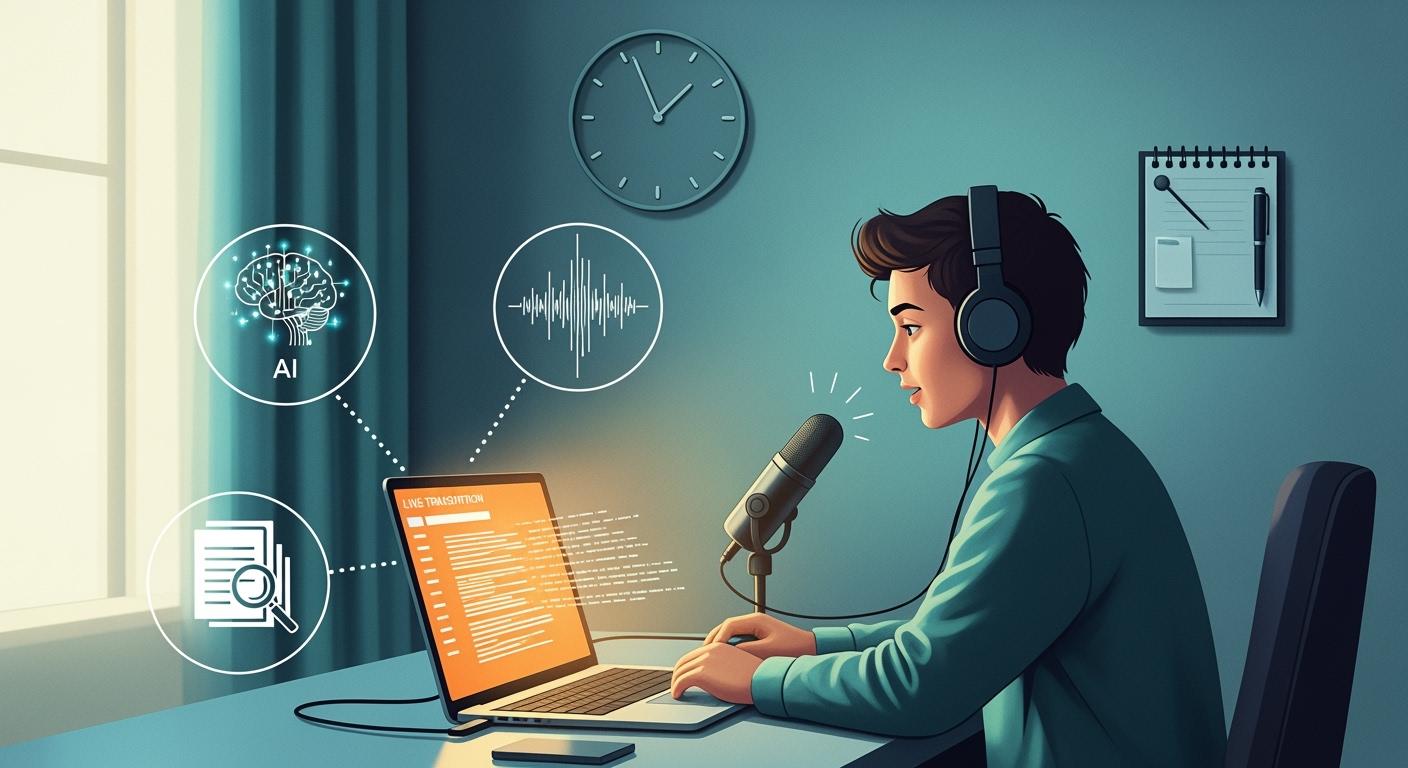
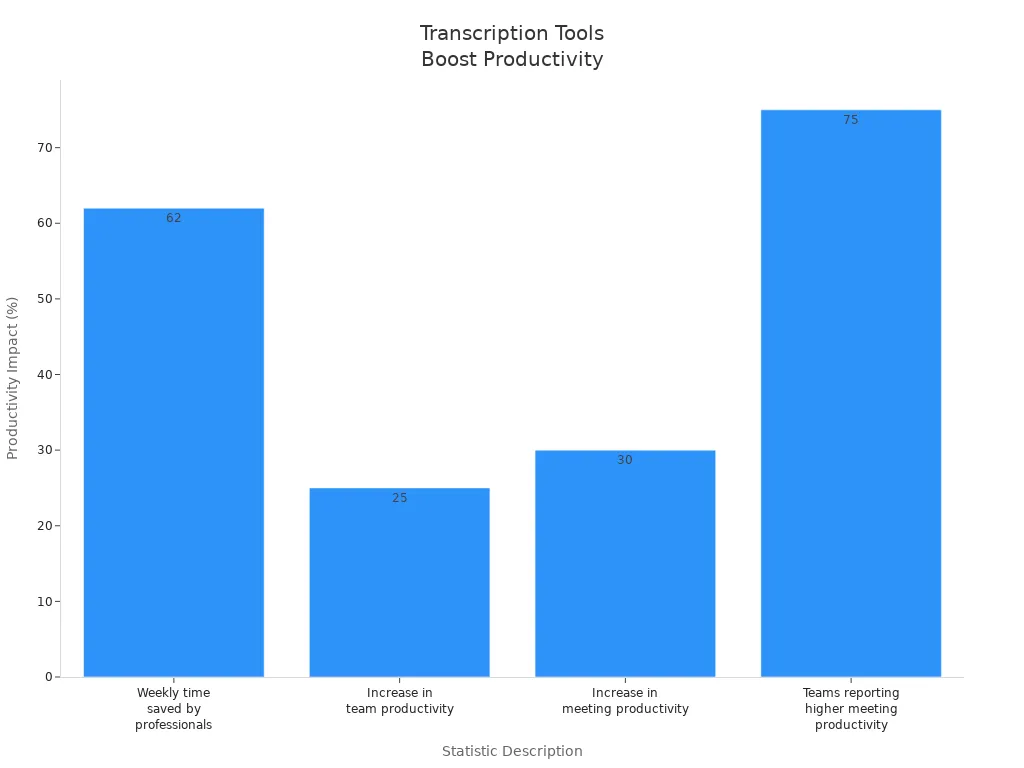
Looking for the best AI dictation software in 2026? Here are the top 9 choices: Wispr Flow, Microsoft Word Dictate, Sonix, Dragon, Google Docs Voice Typing, Gboard, Letterly, Monologue, and Voicenotes. Wispr Flow is special because it is fast and can change its style. Transcription is easy and correct. It now saves professionals more than four hours each week. It also helps teams work better by 25%. You want tools that are accurate, fast, private, and work on many devices. More than a million companies use these tools to make work easier.
Metric | Value |
|---|---|
Companies using AI transcription | 1M+ |
Remote work adoption | 75% |
Key Takeaways
Wispr Flow is a great tool for quick dictation. It helps people save more than four hours each week. It also makes teams work better by 25%.
Microsoft Word Dictate works well with Word. It lets you use many languages. It keeps your speech data safe in the cloud.
Sonix is very good at turning audio into text. It can use more than 40 languages. This is helpful for journalists and content creators.
Dragon has strong features for changing and automating tasks. It is best for people who want high accuracy and control.
Google Docs Voice Typing is free and easy to use. It is good for students and teachers. It gives real-time transcription right in Google Docs.
1. Wispr Flow
Features
Wispr Flow gives you a smart way to turn your voice into text. You can use it on iOS, Mac, or Windows. It works everywhere you type, so you do not need to switch apps. You just speak, and your words appear in any text field. Wispr Flow learns how you talk and writes in your style. It even knows what kind of app you are using and changes its output to fit.
Wispr Flow is an iOS and desktop app that offers fast, accurate dictation across all your apps with intelligent context awareness. It works everywhere, allowing dictation into any text field, and adapts its output based on the context of the application being used.
You get real-time dictation, so your words show up instantly. Wispr Flow also syncs your settings across devices. This means you can start on your phone and finish on your computer without missing a beat.
Pros & Cons
Here’s what makes Wispr Flow stand out:
90% accuracy for your transcriptions.
Auto-formatting for lists and points.
Removes filler words for cleaner text.
Learns your vocabulary for better results.
Lets you fix mistakes as you speak.
Whisper Mode for quiet environments.
Works in any app, not just one.
Syncs across all your devices.
Best For
You will love Wispr Flow if you want to save time and boost your writing speed. It is perfect for writers, students, busy professionals, and anyone who types a lot. If you use many devices or switch between apps, Wispr Flow fits right into your workflow.
Unique Points
Wispr Flow stands out because it adapts to your style and context. You can dictate anywhere, and it always knows how to format your words. The app learns from you, so your writing sounds natural. You get a tool that feels personal and works everywhere you need it.
2. Microsoft Word Dictate
Features
Microsoft Word Dictate lets you turn your speech into text right inside Word. You can use it on Windows, Mac, or even in Word for the Web. The tool uses cloud-based AI to understand your voice and convert it into written words. You can speak in different languages, and it recognizes technical terms, which is handy if you work in IT or science. You just click the Dictate button, start talking, and watch your words appear on the page. The tool also supports punctuation commands, so you can say “comma” or “period” to add them as you speak.
Pros & Cons
Let’s look at what you get and what you might miss:
You can use Dictate across devices, so you’re not stuck on one computer.
The tool understands many languages and technical jargon.
Your speech data stays safe in your Microsoft 365 cloud account.
Microsoft uses encryption and strict privacy rules to protect your information.
You can manage your transcripts and delete them when you want.
Sometimes, you need a strong internet connection for the best results.
Dictate works best in quiet spaces, so background noise can affect accuracy.
Best For
You’ll find Microsoft Word Dictate useful if you write reports, essays, or emails often. Students, teachers, and office workers benefit the most. If you switch between devices or need to work on the go, Dictate fits your routine. Developers and professionals who use technical language will appreciate its recognition skills.
Unique Points
Microsoft Word Dictate stands out because it works everywhere you use Word. You don’t need extra apps or tools. The cloud-based AI adapts to your language and technical needs. You get privacy controls and can manage your transcripts easily. The tool makes dictation simple and secure for anyone who wants to save time and type less.
3. Sonix
Features
Sonix gives you a fast way to turn audio into text. You can upload files or record directly in the app. Sonix supports over 40 languages, so you can use it for global projects. The platform works in your browser, so you don’t need to install anything. You get tools for editing transcripts, highlighting sections, and searching for keywords. Sonix also lets you share transcripts with your team or export them in many formats. You can add speaker labels and timestamps to make your transcripts clear.
Pros & Cons
You want to know how Sonix performs in real life. Here’s what you get:
Sonix achieves 99% accuracy when conditions are perfect.
In business settings with noise or multiple speakers, accuracy drops to about 69.36%.
You can edit transcripts easily and fix mistakes.
Sonix works with many audio and video file types.
You can collaborate with others and share your work.
Sometimes, you may need to review and correct transcripts if the audio is messy.
Best For
Sonix fits you if you work with interviews, podcasts, or meetings. Journalists, researchers, and content creators use Sonix to save time. If you need to transcribe audio from different languages or share transcripts with a team, Sonix makes your job easier. You can use Sonix for business calls, lectures, or any project that needs fast transcription.
Unique Points
Sonix stands out because it offers flexible pricing and strong collaboration tools. You can pay as you go or choose a subscription. Here’s a quick look at how Sonix compares to other tools:
Software | Pricing Model | Key Features |
|---|---|---|
Sonix | Pay-as-you-go and Subscription | $10/hour (Standard), $22/month + $5/hour (Premium), Custom for Enterprise |
Sally | Flat-rate Subscription | €34/month (Team), €73/month (Expert), Custom for Enterprises |
You get a platform that works in your browser and supports many languages. Sonix helps you organize, edit, and share transcripts without hassle. If you want flexibility and teamwork, Sonix is a smart choice.
4. Dragon
Features
Dragon gives you powerful speech-to-text tools that help you work faster. You can speak, and Dragon turns your words into text almost instantly. You get up to 99% accuracy right out of the box, so you spend less time fixing mistakes. Dragon lets you create your own vocabulary and voice commands. This means you can add industry terms or shortcuts that fit your job. You can even automate tasks by saying a single command. Dragon works with popular business apps, so you can edit and format documents with your voice.
Here’s a quick look at what Dragon offers:
Feature | Description |
|---|---|
High Accuracy | Converts speech to text three times faster than typing, with 99% accuracy. |
Customization | Lets you add vocabulary and commands for your workflow. |
Task Automation | Automates multi-step tasks with voice commands. |
Enhanced Dictation | Gives you full editing and formatting control by voice. |
Smart Format Rules | Adapts formatting for dates, abbreviations, and more. |
Anywhere Functionality | Lets you work across devices without losing progress. |
Pros & Cons
Let’s break down what you’ll like and what you might not:
You get top-notch accuracy, even with no training.
You can customize Dragon for your job or industry.
You can automate boring tasks with your voice.
Dragon costs more than most other tools.
You need a computer with good specs for the best experience.
Best For
Dragon works best for professionals who want speed and control. If you’re a doctor, lawyer, writer, or business leader, you’ll love how Dragon adapts to your needs. You can use it for reports, emails, or even coding. If you want to save time and reduce typing, Dragon is a smart pick.
Unique Points
Dragon stands out because it gives you more control than most dictation tools. You can teach it new words and commands. You can automate your daily tasks. Dragon’s smart formatting rules keep your documents looking sharp. You can start on one device and finish on another. If you want a tool that grows with you, Dragon delivers.
5. Google Docs Voice Typing
Features
Google Docs Voice Typing gives you a simple way to turn your speech into text. You just open Google Docs, click the microphone icon, and start talking. The tool works right inside your browser. You can use it on any device with Chrome or another supported browser. Google Docs Voice Typing handles punctuation for you. You do not need to say “comma” or “period” every time. The tool recognizes your voice and adds punctuation automatically. You can speak in many languages, so it fits global users. You get real-time transcription, and your words appear as you talk.
Pros & Cons
Let’s break down what you get with Google Docs Voice Typing:
You can start dictating with one click.
Accuracy sits around 90%, which is good for a free tool.
Punctuation works better than most free options.
You must stay online. The tool only works in Google Docs, not in Gmail or other apps.
Voice data links to your Google account. If your account gets compromised, your data is at risk.
Google collects voice patterns, location, and device info. This builds a detailed profile about you.
The tool is not HIPAA compliant. You should avoid using it for healthcare data.
Best For
You will find Google Docs Voice Typing helpful if you write essays, notes, or reports in Google Docs. Students and teachers use it for quick drafts. If you want a free, easy way to dictate text, this tool fits your needs. You get the most value if you already use Google Docs for your work or school projects.
Unique Points
Google Docs Voice Typing stands out because it is free and easy to use. You do not need to install anything. The tool handles punctuation automatically, which saves you time. You can adjust your privacy settings to manage voice data storage. For extra security, use strong passwords and enable two-factor authentication. If you want a basic dictation tool that works in your browser, Google Docs Voice Typing is a solid choice.
6. Gboard
Features
Gboard is Google’s keyboard app for Android and iOS. You can use voice typing to turn your speech into text right from your phone. Gboard works fast and gives you accurate results. You can switch between languages with just a tap. The app connects with Google services, so you can search for information or GIFs without leaving your keyboard. Gboard lets you use emojis, stickers, and glide typing, making your messages more fun.
Tip: Gboard’s voice typing is much faster and more accurate than Siri. You can dictate notes, texts, or emails on the go.
Main features include:
Voice typing with about 95% accuracy.
Easy language switching for multilingual users.
Integration with Google search and services.
Emoji and GIF support.
Works on Android and iOS devices.
Pros & Cons
You want to know what makes Gboard a good choice and where it falls short. Here’s a quick look:
Fast and reliable voice typing for quick notes.
Free to use with no hidden costs.
Supports many languages and easy toggling.
Integrates with Google services for extra convenience.
No offline dictation; you need an internet connection.
Privacy concerns since Google processes your voice data.
Lacks advanced customization for professional dictation.
Best For
Gboard fits you if you need a simple, free tool for quick dictation on your phone. It’s great for students, busy parents, and anyone who wants to send messages or jot down notes fast. If you use Android, Gboard is already built in. You can use it for emails, texts, or reminders without switching apps.
Comparison Table:
Tool | WER | Cost | Best For |
|---|---|---|---|
Gboard Voice Typing | 23.8% | Free | Android quick notes |
Voice Memos Transcription | 22.4% | N/A | iOS |
Dragon | High | N/A | Professional dictation |
Unique Points
Gboard stands out because it’s always ready on your phone. You don’t need to install extra apps or pay for upgrades. You can switch languages in seconds. Gboard’s voice typing is fast and accurate, making it a top pick for everyday dictation. If you want a keyboard that does more than just type, Gboard gives you search, emojis, and voice input all in one place.
7. Letterly
Features
Letterly helps you turn your voice notes into neat text. You record your ideas, and the app changes them into organized writing. There are more than 25 ways to rewrite your notes. You can pick a style that matches your mood or project. Letterly works with over 90 languages. You can speak in your own language or switch if you want. You can record even when your phone screen is off. This lets you save ideas anywhere, anytime. Letterly connects to Google Docs and Notion with webhooks. You can send your notes right to these platforms.
Feature Description | Details |
|---|---|
Rewriting Voice Notes | Changes voice notes into easy-to-edit formats. |
Rewriting Styles | Lets you pick from 25+ styles. |
Language Support | Works with speech in 90+ languages. |
Screen Off Recording | Lets you record while the screen is off. |
Webhook Integration | Sends notes to Google Docs and Notion easily. |
Pros & Cons
Letterly gives you lots of options. Here are some things you might see:
You can change your notes into many styles.
Paid plans let you record as much as you want.
Works in lots of languages.
Sends notes to Google Docs and Notion.
Lets you record with the screen off.
Some features need a subscription.
No offline transcription.
Best For
Letterly is good for people who make content, take lots of notes, or use many languages. Students, writers, and busy workers like how it makes messy notes neat. If you want to send notes to Google Docs or Notion, Letterly makes it simple.
Unique Points
Letterly is special because it rewrites your notes in over 25 styles. You can record with the screen off. This saves battery and keeps your notes private. The app works with more than 90 languages. You can link it to your favorite platforms. Pricing is flexible. You can pay yearly starting at $70, monthly for about $9, or get a lifetime deal for $69. Teams and businesses can get custom prices. You get a 60-day trial to try it risk-free.
Plan Type | Price | Features Included |
|---|---|---|
Annual Subscription | Starting at $70/year | Unlimited recordings, all rewrite options |
Monthly Plans | Around $9/month | Unlimited recordings, transcriptions, rewrites, multi-language support |
AppSumo Lifetime Deals | Starting from $69 | Lifetime access for one device |
Enterprise Pricing | Custom Pricing | Made for teams and businesses |
Money-Back Guarantee | 60-day trial | Try it with no risk |
Tip: If you want your voice notes to sound creative or professional, use Letterly’s rewriting styles. You can make your notes fit any project.
8. Monologue
Features
Monologue gives you a simple way to turn your speech into text. You can use it right on your Mac. The app listens as you talk and writes your words in real time. You get a clean interface that helps you focus on your dictation. Monologue supports advanced editing tools. You can fix mistakes quickly and format your text as you go. The app saves your transcripts so you can find them later. You can use Monologue for notes, emails, or longer documents.
Monologue works best if you want a distraction-free dictation experience on macOS.
Pros & Cons
You want to know what Monologue does well and where it falls short. Here’s a quick look:
Works smoothly on macOS.
Offers real-time transcription.
Lets you edit and format as you speak.
Saves your transcripts for easy access.
Limits you to Mac devices only.
Lacks cross-platform compatibility compared to tools like Wispr Flow.
Best For
Monologue fits you if you use a Mac every day. Writers, students, and professionals who work on macOS will find it useful. If you need a tool that keeps things simple and helps you focus, Monologue is a good pick. You can use it for schoolwork, business notes, or creative writing.
Unique Points
Monologue stands out because it keeps dictation easy and clean. You get a focused workspace without extra distractions. The app gives you strong editing tools right inside the dictation window. If you want a tool that stays out of your way and helps you write faster, Monologue delivers. Just remember, you need a Mac to use it.
Tip: If you want to keep your workflow simple and stay on one device, Monologue makes dictation easy.
9. Voicenotes
Features
Voicenotes gives you a simple way to turn your speech into text. You can use it on your phone or computer. The app supports many languages, so you can speak in your native language or switch when you need. You get real-time transcription, which means your words appear as you talk. Voicenotes works well even if there is background noise. You can save your notes, share them, or export them to other apps. The app also lets you organize your notes with tags and folders. This helps you find your ideas fast.
Pros & Cons
Let’s look at what you get with Voicenotes:
Fast and accurate transcription, even in noisy places.
Supports multiple languages for global users.
Easy to organize and search your notes.
Works on both mobile and desktop.
Some advanced features may need a subscription.
No offline mode for transcription.
Best For
You will like Voicenotes if you want a tool that keeps your ideas safe and private. It fits students, writers, and busy professionals. If you switch between devices or work in different languages, Voicenotes makes your workflow smooth. You can use it for class notes, meeting minutes, or quick reminders.
Unique Points
Voicenotes stands out because it puts your privacy first. Here’s what makes it special:
Zero data retention policy. Your voice data never stays on their servers.
Real-time transcription with high accuracy. You get 85-90% accuracy in daily use, and up to 99% in good conditions.
Handles background noise better than most tools.
Recognizes speech in many languages.
Organizes your notes with tags and folders.
If you want a dictation app that respects your privacy and works fast, Voicenotes is a smart pick. You get peace of mind and powerful features in one package.
What Is AI Dictation Software?
Definition & How It Works
AI dictation software is not like old voice typing tools. It uses artificial intelligence to turn your speech into text right away. The software listens to you and writes your words fast. It understands what you mean and fixes grammar mistakes. It can remove words like "um" or "uh." The software learns how you talk, so your writing sounds like you. You just speak, and the software does the rest. You can use it for emails, notes, reports, or stories. The process feels easy and quick. Your work gets done faster and looks better.
Benefits
AI dictation software helps you every day. You finish tasks faster and your writing improves. Here are the main benefits:
Benefit | Explanation |
|---|---|
Increased Speed | You can talk much faster than you can type. This helps you finish your work quickly. |
Improved Accuracy | The software catches your words and makes fewer mistakes. Your text looks neat and professional. |
Enhanced Output Quality | Longer prompts help the AI give better answers. Your writing becomes richer and more detailed. |
Efficient Content Creation | Writing emails or reports is easy. You do not need to edit much. |
Better Collaboration with AI | You can speak your ideas. The AI helps you shape your thoughts like a ghostwriter. |
Tip: If you want to save time and get more done, try AI dictation software for your next project. You may be surprised at how fast you work and how good your writing sounds.
AI Dictation Software Comparison
Accuracy
You want your words to be correct every time. Accuracy is very important when you use AI dictation software. Some tools are better than others. Here is a simple table that shows how they compare:
Software | General Accuracy | Technical Terms | Accent Handling | Background Noise Resistance |
|---|---|---|---|---|
Sonix | 99% | Excellent | Very Good | Excellent |
Dragon Professional | 95-99% | Excellent | Good | Good |
Microsoft Word | 85-90% | Fair | Fair | Fair |
Google Docs | 80-85% | Poor | Fair | Poor |
Gboard | 95% | Good | Good | Fair |
Letterly | 90% | Good | Good | Good |
Monologue | 90% | Good | Good | Good |
Voicenotes | 85-90% | Fair | Good | Very Good |
Wispr Flow | 90% | Excellent | Excellent | Good |
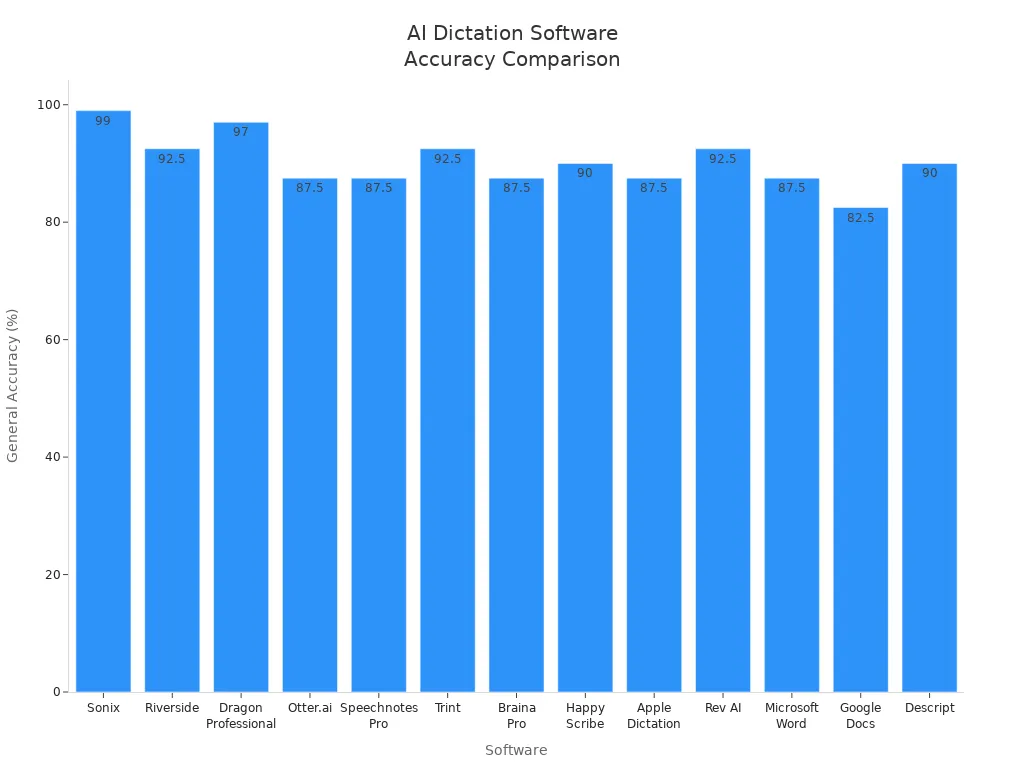
Tip: If you need your technical words to be right, Sonix and Dragon are the best. Wispr Flow can change to match how you talk for natural results.
Usability
You want a tool that is easy to use and fits your daily routine. Usability means you can start dictating fast, switch devices, and fix mistakes easily. Here is what each tool does:
Wispr Flow works everywhere you type and keeps your settings on all devices.
Microsoft Word Dictate is inside Word, so you do not need extra apps.
Sonix lets you upload files and edit transcripts in your browser.
Gboard is always ready on your phone for quick notes.
Letterly rewrites your notes in different styles and connects to Google Docs.
Monologue keeps things simple for Mac users.
Voicenotes helps you organize your notes with tags and folders.
Note: If you use more than one device or need your tool to work everywhere, Wispr Flow and Sonix make your work easier.
Pricing
You want to know which tool fits your budget. Prices are different for each tool. Some are free, and others need a subscription.
Software Tool | Price | Compatibility |
|---|---|---|
Wispr Flow | $12/month (Premium) | Mac, Windows, iOS |
Microsoft Word | Included in Microsoft 365 | Mac, Windows, Web |
Sonix | $10/hour or $22/month | Web |
Dragon | $150+ one-time or $15/month | Mac, Windows |
Google Docs | Free | Web |
Gboard | Free | Android, iOS |
Letterly | $9/month or $70/year | Android, iOS |
Monologue | $5/month | Mac |
Voicenotes | Free, paid plans available | Android, iOS, Web |
If you want a free tool, Google Docs and Gboard are good choices. For more features, Wispr Flow and Dragon have premium plans.
How to Choose the Right Tool
Key Factors
Picking the best AI dictation software can feel tricky, but you can make it simple by focusing on what matters most. Here’s a quick table to help you compare:
Factor | Description |
|---|---|
Look for software that gets your words right, as close to 100% as possible. | |
Specific Needs | Think about what you want to do—writing emails, taking notes, or working with technical terms. |
Integration and Compatibility | Make sure the tool works with your devices and fits into your daily apps and systems. |
You should also think about privacy, support, and cost. Some tools keep your data private by processing everything on your device. Others use the cloud and offer more features but may store your voice data. Support matters too—if you need help, you want fast answers.
Tip: Write down your top three must-haves before you choose. This helps you focus on what you really need.
Matching to Needs
Everyone works differently, so the best tool for you depends on your habits and devices. Here are some things to consider:
If you care about privacy, look for apps that process everything on your device and don’t keep your voice data.
If you want the latest features and updates, a subscription plan with cloud support might be best.
If you need to save money, a one-time purchase or free tool could work well.
If you switch between your phone and computer, pick a tool that syncs across devices.
If you use special words or technical language, choose software that lets you add your own vocabulary.
Think about when and where you’ll use your tool. Do you need offline access? Do you want to use it in noisy places? Match your needs to the features each app offers. This way, you’ll find the AI dictation software that fits your life.
Note: Try a free version first if you can. This lets you see if the tool feels right before you pay.
Tips for Better Transcription
Best Practices
You want your transcripts to be clear and accurate. Here are some best practices to help you get the most from your AI dictation software:
Speak slowly and clearly. This helps the software catch every word.
Use a good microphone. Background noise can confuse the software.
Check your settings before you start. Make sure your language and region are correct.
Review your transcript right after dictation. Fix any mistakes while your memory is fresh.
Use punctuation commands if your tool supports them. This keeps your text neat.
Take breaks if you have a long session. You stay focused and avoid missing words.
Save your work often. You do not want to lose your transcript.
Tip: Try to dictate in a quiet room. You will get better results and fewer errors.
Mistakes to Avoid
Even the best tools can make mistakes. You can avoid common problems if you know what to watch for:
Misheard words can change the meaning of your sentences. Always check for odd phrases.
Grammatical and spelling mistakes make your transcript hard to read.
Formatting inconsistency happens if you do not follow a style guide.
Omissions and missing words can leave your transcript incomplete.
Typo errors may cause confusion or misunderstandings.
Misidentifying speakers can mix up who said what.
Ignoring context leads to inaccurate reporting of terms or ideas.
Note: If you spot mistakes, fix them right away. You will keep your transcript professional and easy to understand.
You can make your transcription process smooth and efficient. Follow these tips and avoid common errors. Your transcripts will look polished and help you work faster.
User Concerns & Support
Privacy & Security
When you use AI dictation software, you want to know your words stay safe. Many people worry about privacy, especially if they work with sensitive information. Good software follows strict rules like HIPAA to protect your data. Some companies even sign special agreements to keep your information private. They train their staff to handle your data with care. Always check if the tool you pick meets the privacy laws in your area. If you work in healthcare or law, this is extra important.
Tip: Look for software that explains how it keeps your data safe and lets you control your transcripts.
Compatibility
You want your dictation tool to work with your favorite devices and apps. Some tools only work on certain platforms, like Mac or Windows. Others let you switch between your phone and computer. If you use special systems, like electronic medical records (EMR), make sure your software connects with them. Not every tool works with every system, so check before you buy.
Here’s a quick table to help you compare:
Tool | Works On | EMR Integration |
|---|---|---|
Wispr Flow | Mac, Windows, iOS | Yes |
Dragon | Mac, Windows | Yes |
Gboard | Android, iOS | No |
Sonix | Web | Limited |
Note: Always test the tool with your main apps to avoid surprises.
Support
You want help when you need it. Good support makes your experience smoother. Some companies offer live chat, email, or phone support. Others have guides and videos to help you learn. Before you choose, check if the company trains its support team well. Read the contract or terms to see what kind of help you get. Picking a vendor with strong support can save you time and stress.
Check if support is available in your time zone.
See if there’s a knowledge base or FAQ for quick answers.
Ask about training or onboarding help if you’re new to dictation tools.
If you ever feel stuck, a good support team can make all the difference.
You have many great AI dictation tools to choose from in 2026. Wispr Flow stands out for speed and smart style. If you want something simple or free, try Google Docs Voice Typing or Gboard. Need teamwork? Sonix is a solid pick.
Tip: Test free versions before you decide.
Remember to check privacy, device support, and customer help. Pick the tool that fits your workflow best!
FAQ
How do I start using AI dictation software?
You just download the app or open it in your browser. Tap the microphone icon and start speaking. Most tools guide you with simple steps. You can try free versions before you buy.
Can I use AI dictation on my phone?
Yes! Many apps work on both Android and iOS. You can dictate notes, emails, or messages right from your phone. Some tools even sync your work across devices.
Is my data safe with these tools?
Most top apps use strong security and privacy rules. Some keep your data on your device. Others use the cloud but encrypt your files. Always check the privacy policy before you start.
Which tool is best for students?
If you need something free and easy, try Google Docs Voice Typing or Gboard. For more features, Wispr Flow helps you write faster and keeps your notes organized.
Do I need the internet for dictation?
Some tools need an internet connection for the best results. Others work offline. Check the app’s features before you choose. If you travel a lot, offline mode can help.
See Also
AI Solutions For Translating Calls, Events, And Streaming
Comparing ACE Studio 2.0 And Suno AI For Music Creation
AI Voice Cloning Helps Video Creators Cut Voiceover Expenses

© Copyright 2025 LinkstartAI - All Rights Reserved.